Quick Start
Check and fix your first STL files in a few steps.
Add files
Drag one or more .stl files from Finder onto the window, or click Choose Files… (also Open STL Files… in the File menu, ⌘O). Checking starts automatically; files are processed one at a time in the order added. You can keep dropping files while a job runs.
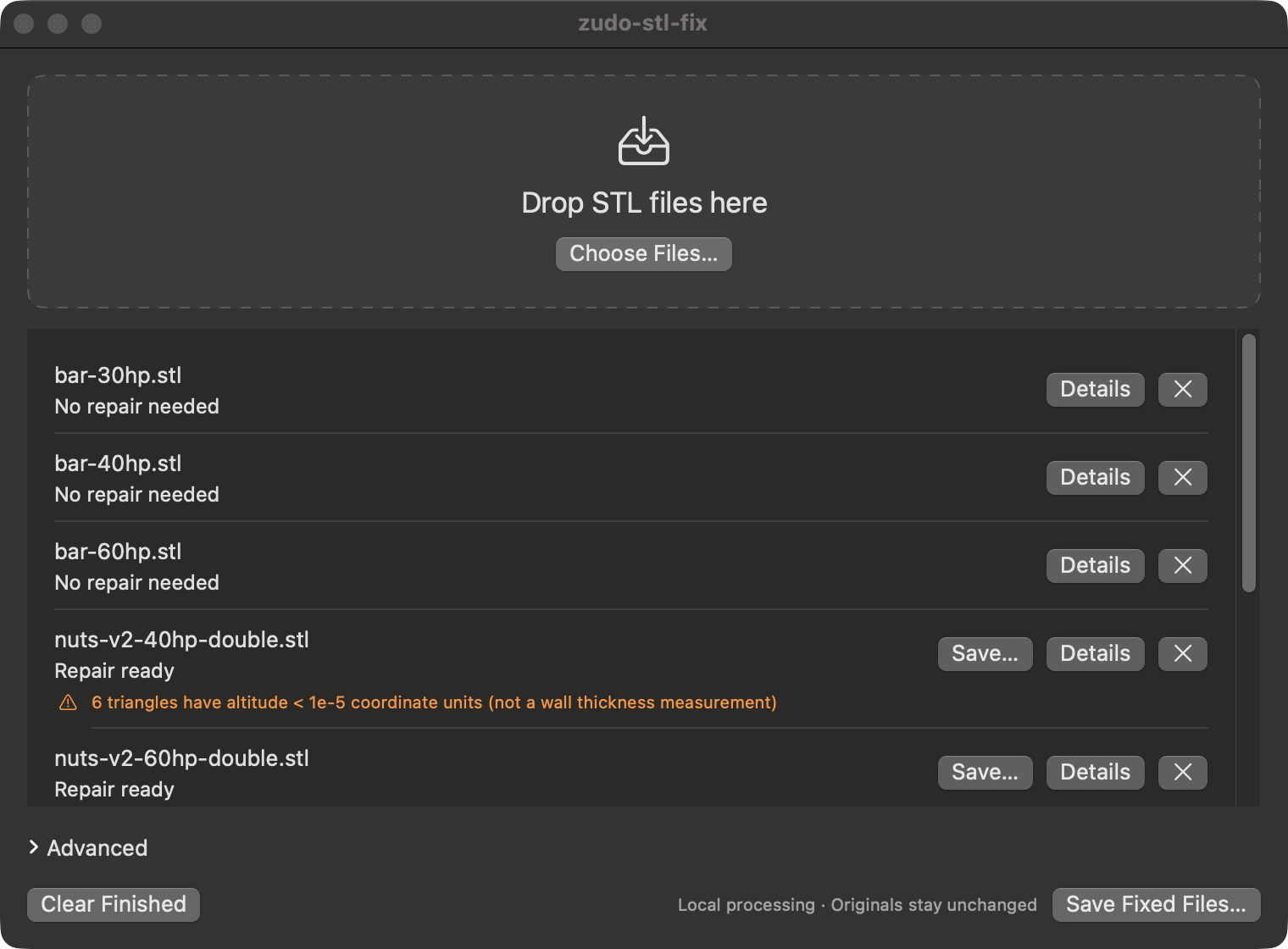
Read the statuses
Each row shows a status under the file name:
No repair needed: the check found nothing to fix. No copy will be made.
Repair ready: a repair passed validation and is waiting to be saved. Any warnings appear under the row.
Cannot repair safely, Check incomplete, or Error: nothing can be saved for that file.
The full list is in Statuses.
Save
Click Save… on a single row, or Save Fixed Files… to save every ready result at once. Choose a destination folder. Each result is saved as <original-stem>-fixed.stl; if the name is taken, a numbered suffix such as -fixed-2.stl is used. Your original files are never changed.
After saving, the row shows Saved and a Reveal button that shows the file in Finder.
Next
App guide for statuses, saving, details, and cancellation.
Concepts for what "conservative repair" means and what a passing check does not prove.